Your Store, Your Payment Account: Sell Software with Paddle or Lemon Squeezy
Connect your own payment account to a branded software Store. Follow setup, verified payment and license access in the customer’s account.
Your customer has paid. They need the right software license, a receipt and somewhere to find their purchase later. PermitCore Store connects those steps: a branded storefront, your selected payment account and license access in the customer’s account.
Vendors can choose Stripe, Paddle or Lemon Squeezy. Each Store uses one selected provider for new checkouts. This is the account you connect to sell your software; it is separate from how you pay for your own PermitCore plan.
Your software, your storefront
Create the underlying product, then its Store listing, description, images and prices. Decide whether the purchase grants perpetual or recurring access, which features it includes and how many devices it permits. Billing interval and device limits are different settings.
Use Shop Designer to apply your branding and arrange the storefront. A desktop app, game or developer tool can have its own product page while sharing the Store’s chosen payment provider.
Your payment account
Open License Store → Settings and choose the provider to configure. Browsing Paddle or Lemon Squeezy does not switch your active checkout. Connect and verify the account, prepare its products and prices, then activate the provider when ready.
With Paddle or Lemon Squeezy, checkout, tax and provider receipts follow your merchant-of-record agreement with that provider. PermitCore connects verified payment evidence to the software entitlement. You need the provider’s approval and a suitable live account before accepting live payments.
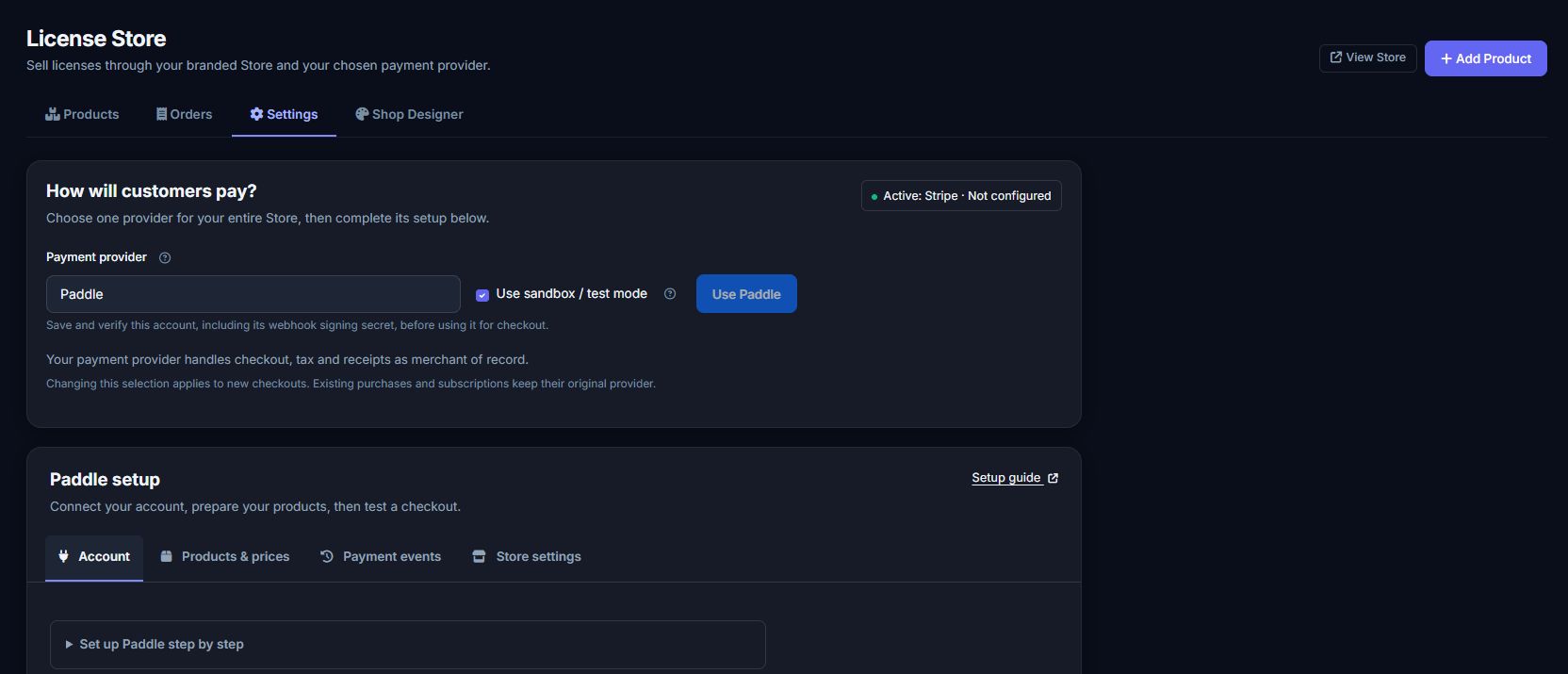
Connect Paddle and sync the catalog
- Start in Paddle sandbox. Under Paddle → Account, enter your account details using the inline help. Server API keys, webhook signing secrets and the public Paddle.js client token have different purposes.
- Save a new connection disabled to obtain its webhook destination. Configure the notification destination in Paddle, add its signing secret in PermitCore, then enable, save and verify it. Keep existing connections enabled while they still service purchases.
- Approve the exact checkout hostname and set the default payment link for that environment. An approved apex domain does not automatically approve every subdomain.
- Open Products & prices. Create or update the Paddle catalog from Store products, then inspect each product/cycle mapping: currency, amount, interval and tax category.
- Use Use Paddle after setup is ready. Confirm the saved Active provider and sandbox/live label before opening checkout.
An API connection check does not prove domain approval, payment or mail delivery. Follow the Paddle setup guide. Paddle also documents its default payment link and approved-domain requirements.
Connect Lemon Squeezy and map its variants
Publish the products and variants in Lemon Squeezy’s dashboard, then map the matching variant IDs in PermitCore. Match the Store currency and each one-time, monthly or annual option. PermitCore does not push product creation through the Lemon Squeezy API.
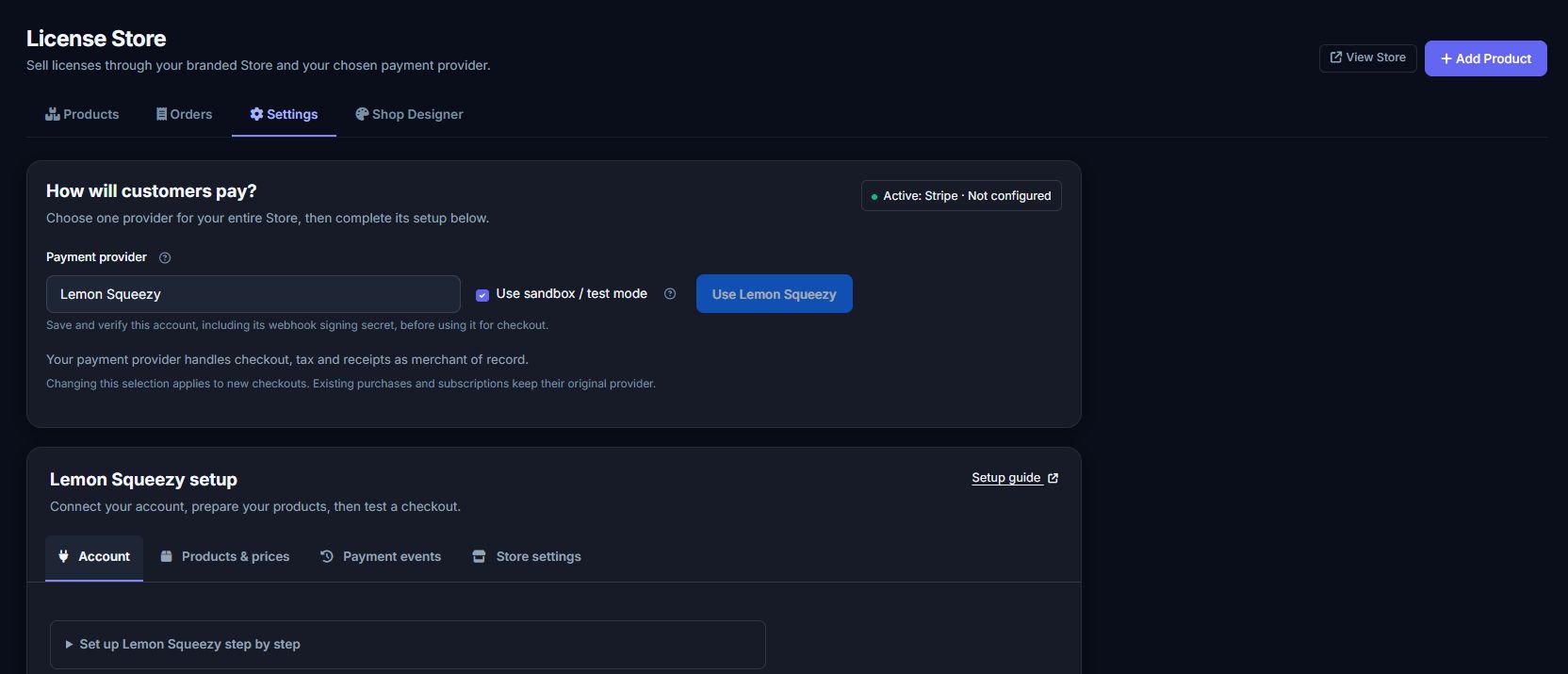
Under Lemon Squeezy → Account, enter the Store ID and an API key from the same mode. Configure the webhook destination and signing secret, then verify the saved account. Use Use Lemon Squeezy only after the account and mappings are ready. The setup guide covers the complete sequence.
For several products in one checkout, configure a generic order variant for the applicable interval. PermitCore sends the saved cart total as a custom price and fulfills the individual Store items. The provider receipt has one aggregate line; PermitCore keeps the individual purchase shares. One-time and recurring items, or monthly and annual items, need separate checkouts. A recurring aggregate is one subscription for its grouped items. See the variant checkout and custom-price reference.
From checkout to a key in the customer’s account
- The customer signs in or creates and verifies a Store account.
- Your selected provider handles checkout. A success-page redirect alone does not prove payment.
- PermitCore checks the signed notification against canonical provider data and saved purchase bindings before fulfillment.
- The completed purchase creates the appropriate order and license. Processing can finish after the buyer returns from checkout.
- The notification email links to My Account → My Keys. License keys are never included in the email.
The account link contains no key and grants no access by itself. Buyers sign in with the verified purchase email, then reveal their own retained key in the account. Historical guest buyers can register with that same email and verify it first. If retained key material was already erased, an order reference cannot recreate it; the account directs that buyer to the seller.
Your application still validates the key for the expected product and activates a device when its license model requires that. A purchase is not activation on every computer. See the startup license-check guide.
Switching providers does not migrate subscriptions
The saved provider changes new checkouts for the entire Store. Existing purchases, refunds and subscriptions retain their original provider connection. Keep that connection’s payment events working. An active subscription snapshot or simulated success webhook does not prove a paid renewal.
Test, then go live deliberately
Complete a sandbox initial purchase, check processed events and the account license, validate the expected product and retry the notification. Test cancellation and refunds, then subscription failure and recovery with supported provider tools and canonical state checks.
Lemon Squeezy Test Mode can show zero VAT and leave renewal invoices pending. Those limits do not prove live tax or settled recurring billing. Do not self-purchase with a real card just to force those test states. Sandbox success does not establish live approval, payout readiness or every future renewal.
Your Store. Your payment account. Software licenses in your customer’s account. PermitCore takes 0% sales commission; payment-provider fees and your PermitCore plan still apply. Start with the Store setup guide and review the provider’s live-account requirements.
Build your first licensed product without building a license server.
Create a free PermitCore account, issue a test license, and validate it from your application.