Account & team
Manage custom roles, team members, account security, API keys, and your PermitCore subscription.
Users & Roles
PermitCore supports multiple team members under one company account. Each user has a role that determines what they can do.
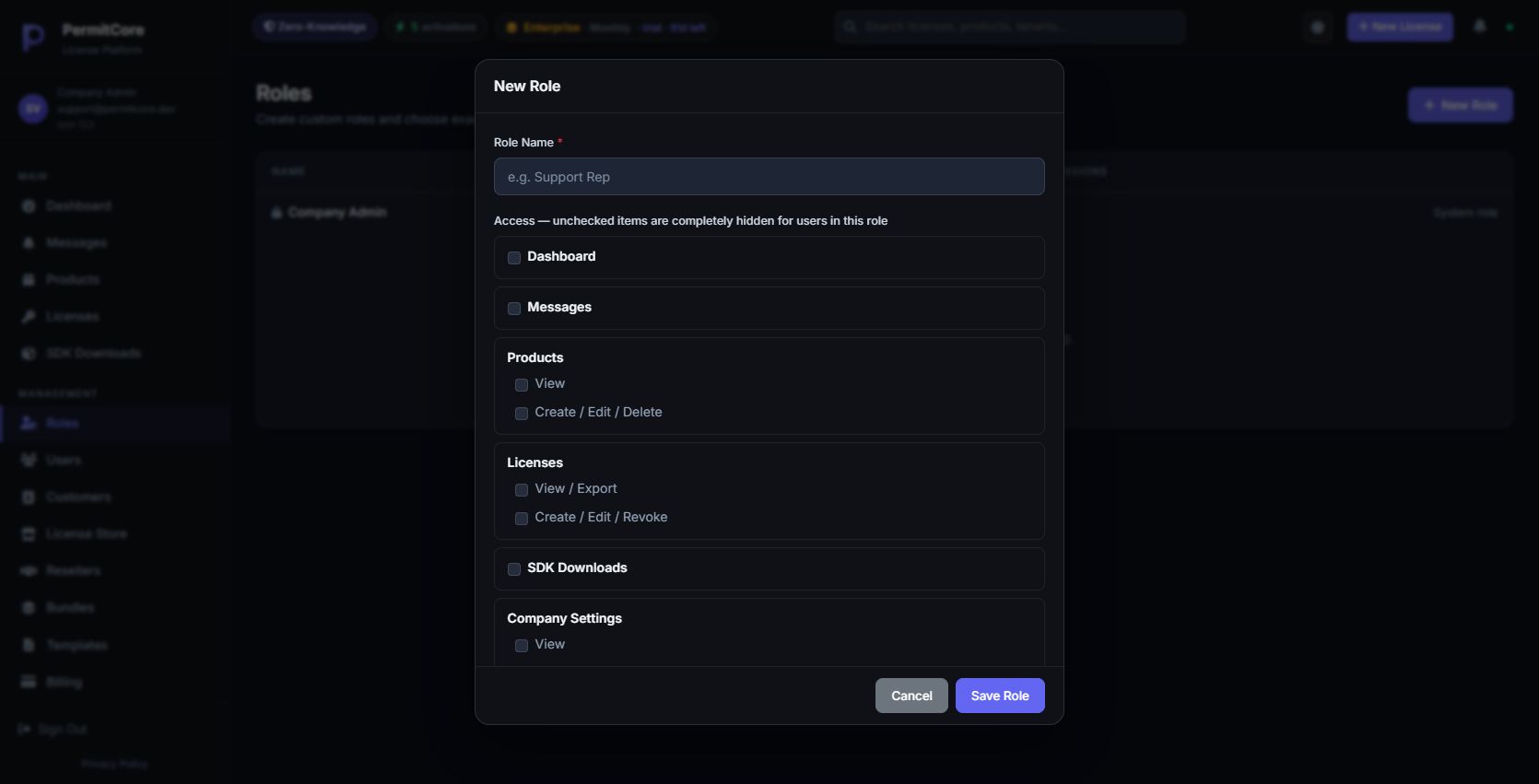
The New Role form starts with no permissions selected. Company Admin remains the fixed full-access role.
Roles explained
| Role | What they can do |
|---|---|
| Company Admin | Full access: manage products, licenses, users, billing, webhooks, company settings. The account owner is always a Company Admin. |
| Company User | Access is defined by the custom role assigned to this user. A role can grant selected menus and tabs; it is not automatically read-only. Missing role permissions mean no access. |
Create a custom role first
- Open Roles → New Role and give it a descriptive name, such as Support.
- Select the menus and tabs that role needs. A new role starts with no access.
- Save the role and assign it when creating or editing a Company User.
- Test with that user account. A menu can be unavailable because of role permissions or your billing plan.
Company Admin is the fixed full-access role and cannot be edited through the role editor. Custom-role restrictions are checked by the API as well as the interface.
Adding a team member
Go to Users → Add User and fill in:
- First & Last Name — for display in the admin panel
- Email — they will use this to log in
- Password — set a temporary password (they can change it in Settings → Security)
- Role — Company Admin for full access, or Company User with an assigned custom role
Deactivating a user
You can deactivate a user (e.g. when an employee leaves) without deleting them. Deactivated users cannot log in but their full audit history is preserved. You cannot deactivate yourself — another admin must do it.
Multi-Factor Authentication (MFA)
Each user can enable TOTP-based MFA independently. Supported apps: Google Authenticator, Authy, 1Password, Bitwarden, Microsoft Authenticator. Setup is under Settings → Security → Enable MFA.
Settings
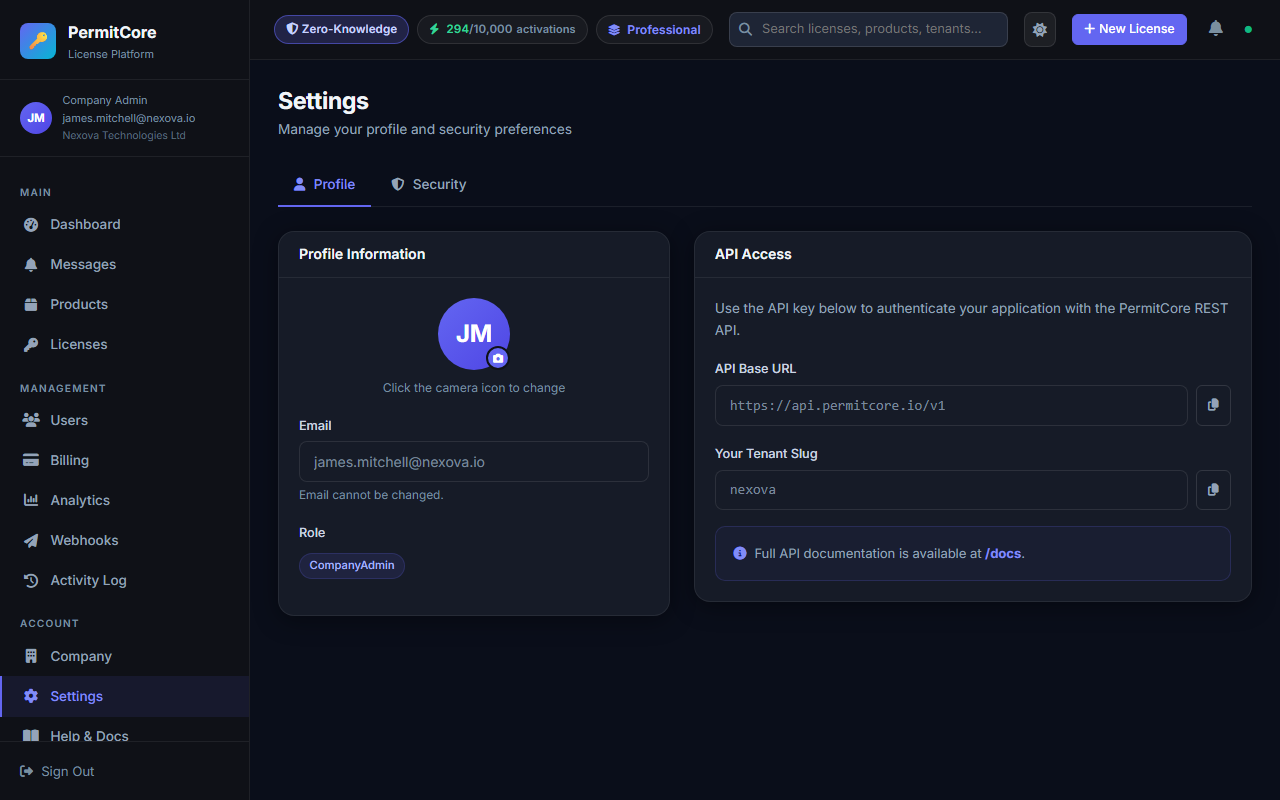
The Settings page — Profile tab showing account info, avatar upload, and API details.
Profile tab
View your email address, role, and company slug. You can upload a profile avatar by clicking the camera icon on the avatar circle. Supported formats: JPG, PNG. The avatar appears in the admin sidebar.
The API Base URL and Tenant Slug shown here are what you use to construct API calls from your application.
Security tab
Changing your password
Enter your current password, then your new password. Requirements: minimum 8 characters, must include at least one uppercase letter, one lowercase letter, and one digit.
Multi-Factor Authentication (MFA)
PermitCore supports TOTP-based MFA (works with Google Authenticator, Authy, 1Password, Bitwarden, etc.).
To enable:
- Go to Settings → Security and click Enable MFA
- Scan the QR code with your authenticator app (or enter the secret key manually)
- Enter the 6-digit code from your app to confirm setup
- Save the one-time backup codes — each code is single-use for account recovery if you lose your device
API Keys tab
API Keys let your server-side applications authenticate with the PermitCore admin API without a browser login. Use them for automated deployments, CI scripts, or backend integrations.
Go to Settings → API Keys and click New Key:
- Name — a label for your own reference (e.g. "Production server", "CI deploy")
- Expiry — optional date. Leave blank for keys that never expire.
After creation, the raw key is shown once — copy it immediately. It won't be shown again.
X-Api-Key: permit_live_xxxxxxxxxxxxxxxxxxxxxxxxxxxxxxxxxxxxxxxx
You can Rotate a key (generate a new one with the same settings, invalidate the old one) or Revoke it instantly from the API Keys list.
Session timeout
The admin panel automatically signs you out after 60 minutes of inactivity. A warning modal appears at 55 minutes — click "Stay signed in" to reset the timer, or "Sign out now" to log out immediately. Activity is tracked by any mouse, keyboard, or touch event.
Company Settings
Go to Company in the sidebar to update your company name and contact email. The Company Slug (the URL identifier) is set at registration and cannot be changed.
Security Policy (Company Admins only)
Enable "Require MFA for all users" to force every team member to set up two-factor authentication before they can access the dashboard. When this policy is on:
- Users who already have MFA enabled log in normally
- Users without MFA are redirected to the MFA setup screen immediately after entering their password
- They cannot access any other page until setup is complete
Data & Privacy — GDPR Export
Click "Export My Data (ZIP)" under Company → Data & Privacy to download a complete archive of all your account data. The ZIP contains:
| File | Contents |
|---|---|
| tenant.json | Your company profile and billing info |
| users.json | All team members (no password hashes) |
| products.json | All products |
| licenses.json | All license keys (encrypted ciphertext, never plaintext) |
| activations.json | Full activation history with IP, country, city, user agent |
| audit_logs.json | Audit trail (last 90 days) |
| api_keys.json | API key metadata (no secrets — only prefix and expiry) |
| README.txt | Explanation of each file and data deletion contact |
Billing & Plans
PermitCore offers four plans. The plans differ in the activation pool size, API rate limit, and which features are available. Lower tiers will see a lock icon and an upgrade prompt for features they don't have access to.
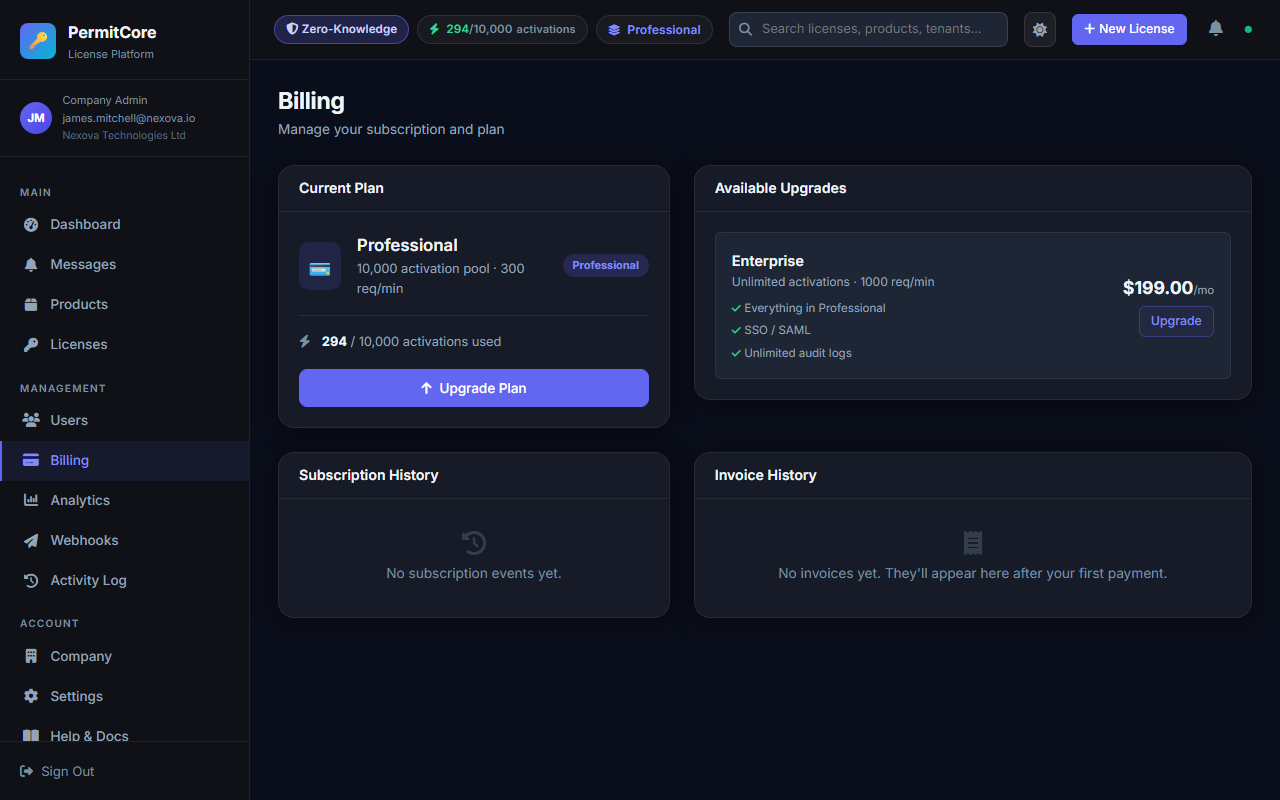
The Billing page showing current plan, activation usage, subscription history, and invoices.
Prices shown are in EUR, plus applicable tax.
What each plan includes
| Feature | Free | Starter | Professional | Enterprise |
|---|---|---|---|---|
| Activations / month | 50 | 1,000 | 10,000 | Unlimited |
| License keys | Unlimited | Unlimited | Unlimited | Unlimited |
| API rate limit | 60/min | 60/min | 300/min | 1,000/min |
| Node-locked / HWID | ✓ | ✓ | ✓ | ✓ |
| GDPR export | ✓ | ✓ | ✓ | ✓ |
| License Store | — | ✓ | ✓ | ✓ |
| Webhooks | — | ✓ | ✓ | ✓ |
| Analytics & Activity Log | — | ✓ | ✓ | ✓ |
| API Keys | — | ✓ | ✓ | ✓ |
| Geo-blocking | — | ✓ | ✓ | ✓ |
| Templates | — | ✓ | ✓ | ✓ |
| Customer CRM | — | ✓ | ✓ | ✓ |
| Floating licenses | — | Up to 5 seats | ✓ | ✓ |
| Metered billing | — | — | ✓ | ✓ |
| Bundles | — | — | ✓ | ✓ |
| SSO / OAuth | — | — | ✓ | ✓ |
| Offline activation | — | — | ✓ | ✓ |
| Resellers | — | — | — | ✓ |
| Signing key export | — | — | — | ✓ |
| Audit logs | 7 days | 30 days | 90 days | Unlimited |
| Custom CSS | — | — | — | ✓ |
| Custom contracts / DPA | — | — | — | ✓ |
| Support | Community | Email (48h) | Priority (8h) | Dedicated (1h) |
| Uptime SLA | — | — | 99.9% | 99.99% |
Uptime and response-time figures above are targets, not contractually guaranteed service credits, except where formalized in a signed Enterprise agreement.
Subscription history & invoices
The Billing page shows your full subscription history (upgrades, downgrades, cancellations) and a downloadable invoice history. Each invoice has a PDF download link for accounting purposes.
Upgrading your plan
Go to Billing, find the plan you want, and click it to start the Stripe checkout. Your plan upgrades instantly after successful payment. The new pool limit takes effect immediately.
Test API keys and sandbox licenses
These are different objects. An API key authenticates a management integration. A license key is the credential your customer uses to validate or activate software.
| Object | How to identify it | What to use it for |
|---|---|---|
| Admin API key | permit_live_… or permit_test_… | Trusted server-to-server administration. The test prefix is not an isolated tenant or a read-only security boundary. |
| Sandbox license | PERMIT-… with isTest: true | Exercise license behavior while excluding test activations from the billing pool. |
Create a sandbox license in Licenses → Create License → Test / Sandbox. Do not attach an admin API key to public validation or activation requests to “make them test requests.” See sandbox licensing.
Create management credentials under Settings → API Keys. Copy the raw value when shown, keep it in a secret manager, and revoke it when no longer needed. Both prefixes authenticate a privileged tenant integration; neither belongs in distributed application code.
Failed PermitCore subscription payments
These reminders concern your company's subscription to PermitCore. When its payment fails, company admins receive an initial email, followed by reminders scheduled for day 3 and day 7 while the payment remains unresolved.
- Open Billing from your admin account.
- Review the failed invoice and update your payment method through the billing portal.
- Confirm the payment and subscription status. A successful payment resolves the reminder sequence.
Reminder delivery depends on the instance's mail configuration and payment webhooks. On the hosted service these are operated by PermitCore; self-hosted operators must configure and monitor them. Scheduled follow-ups may arrive after their nominal time because they are processed by a background worker.
For payments made by buyers in your own store, configure the vendor Stripe integration described in License Store.
Export account data
A company admin with a verified email can download an account-data ZIP from Company Settings. This is available on every plan. The export is a selected set of account records, not a complete database backup or a collection of plaintext license keys.
What the ZIP contains
| File | Contents |
|---|---|
tenant.json | Company profile, activity status, billing tier and timestamps. |
users.json | Team identity, role, email-verification and MFA status; no password hashes. |
products.json | Product names, versions, descriptions and activity status. |
licenses.json | License IDs, product references, activation counts, expiry, notes and tags. The current export includes neither plaintext keys nor encrypted key material. |
activations.json | Activation references, timestamps, IP addresses, location and user agent. |
audit_logs.json | Audit events from the last 90 days. |
api_keys.json | Names, prefixes, activity and expiry metadata; no raw API keys or hashes. |
README.txt | Export date and a description of the archive. |
Download and use the export
- Sign in as a company admin and open Company Settings → Export My Data.
- Choose Export All Data and save the ZIP in a protected location.
- Inspect the included files before using the archive for an access request or migration. It contains personal data and does not include every application feature's records.
The API equivalent is GET /api/gdpr/export with the signed-in admin's bearer token. API keys are not accepted by this endpoint. The export action is recorded in the audit log.