Customer Portal
Customer Self-Service Portal
Every PermitCore tenant gets a public self-service portal at
/portal/{your-slug}. Customers can look up their own license key,
view their activation history, and remove devices — without contacting you.
Portal URL
https://your-domain.com/portal/your-company-slug
Your company slug appears on the Settings → Profile page. Share this URL in your app's About screen, license email, or support docs.
What customers can do
| Action | How |
|---|---|
| View license status | Enter license key → see product, expiry, activation count |
| See activation history | Lists all activated devices with device name, country, and date |
| Remove a device | Click "Remove" next to any activation — frees one seat for re-use |
| Check custom fields | Any custom fields (edition, seats, etc.) are shown in the portal |
| See every license in one place (optional) | With an account (/portal/{your-slug}/account), link licenses once and see them all in a dashboard instead of looking one up at a time |
Security — three levels
By default, the portal uses the license key itself as the authentication token — possession of the key proves ownership. Customers can only see and modify activations for keys they provide. The server computes a hash of the submitted key and looks it up — the plaintext key is never stored. This is the right default for most software vendors: a desktop or embedded app has nowhere to hold a "real" account credential that isn't itself just another copy of the key.
If your licensing model needs more than that — enterprise volume licenses managed by IT, named accounts, a stricter compliance requirement — Settings → Security Policy lets you raise the bar:
| Level | What it requires | Plan |
|---|---|---|
| Key only (default) | License key alone, as described above. | All plans |
| Key + email code | Viewing status still only needs the key. Removing a device additionally emails a one-time code to the license's linked contact, which must be entered to confirm. | Professional+ |
| Account required | The key-only portal is disabled entirely. Customers sign in with an email/password account and only see licenses linked to that account — a dashboard of everything they own, not one lookup per key. | Enterprise |
White-label branding
The portal is fully white-label — your customers see your brand, PermitCore is invisible. Go to Company → Portal Branding tab and configure:
| Setting | What it does | Plan required |
|---|---|---|
| Portal Display Name | Company name shown in the portal header instead of "Your License" | Starter+ |
| Logo URL | Your logo displayed top-left — any direct image URL (HTTP/HTTPS) | Professional+ |
| Brand Color | Hex color applied to buttons and accent elements (color picker included) | Professional+ |
| Custom CSS | Full CSS control — fonts, backgrounds, layout, hide any element. No <script> tags. Max 10 000 chars. | Enterprise |
All changes go live immediately — no rebuild, no cache invalidation needed.
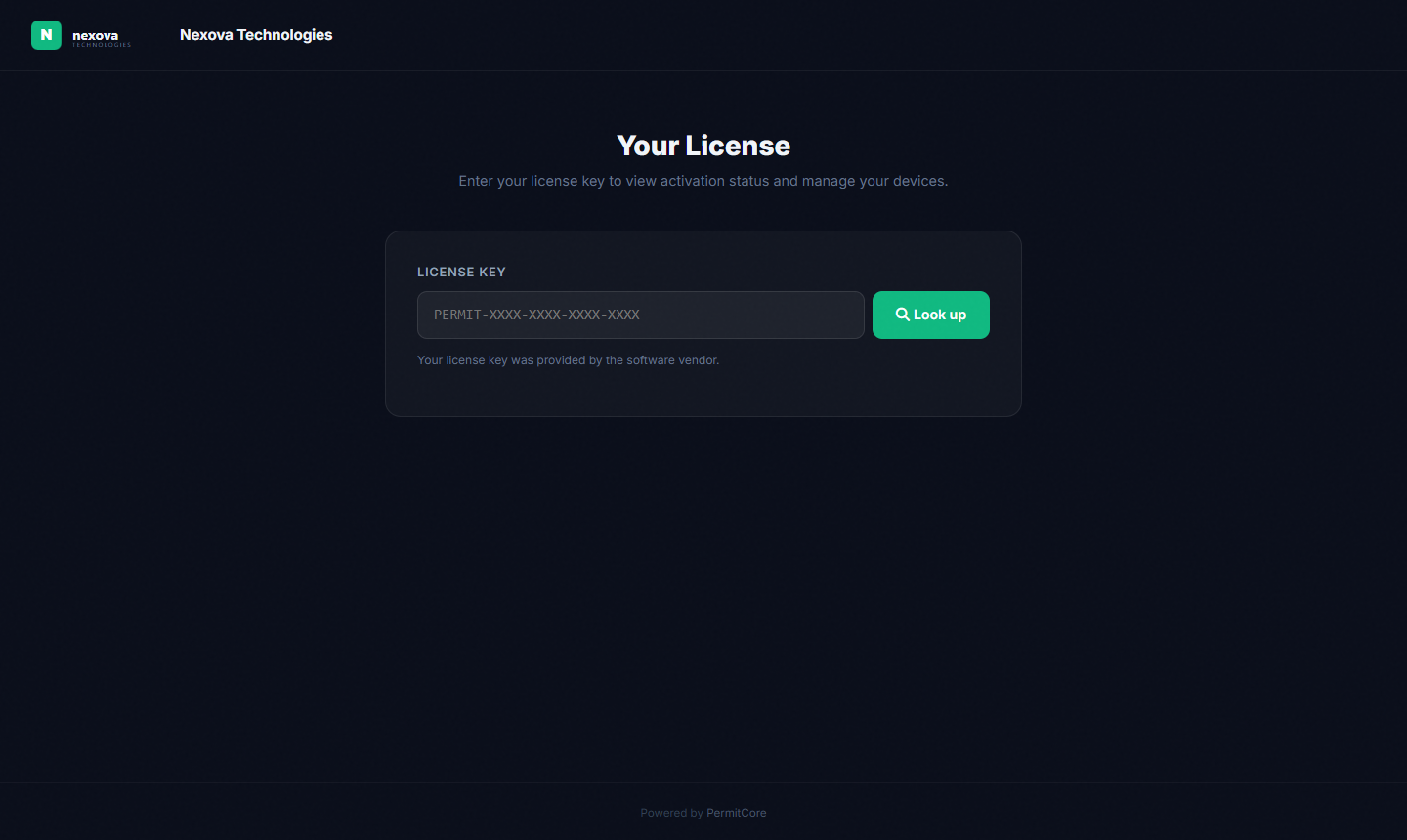
White-label portal — Nexova Technologies logo, brand color (#10b981), company name. PermitCore branding is absent.
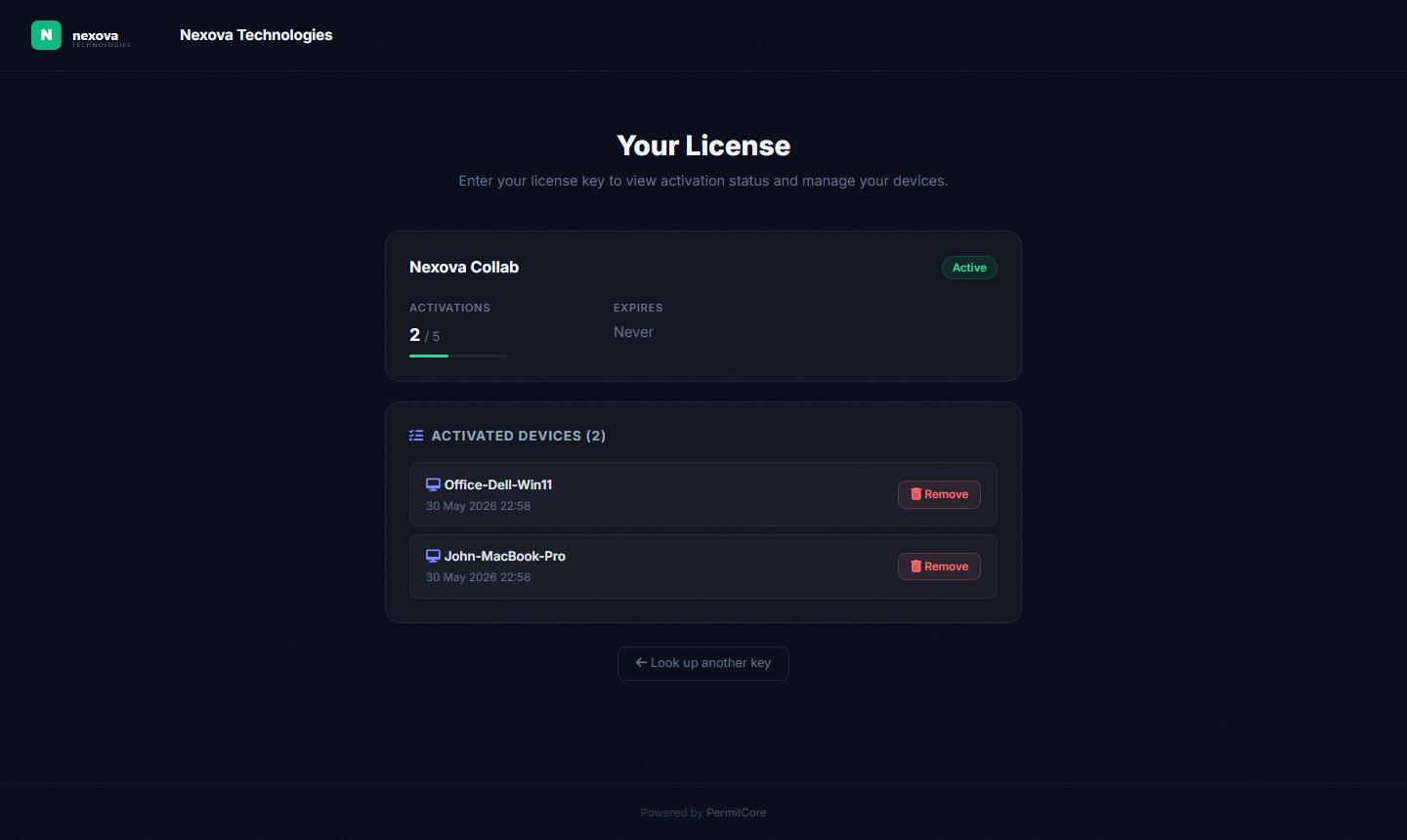
After entering the license key — product name, activation count, and list of activated devices with self-service Remove buttons.
footer { display: none; }Linking from your app
// Open the portal directly to the customer's license
Process.Start(new ProcessStartInfo(
    "https://your-domain.com/portal/your-slug"
) { UseShellExecute = true });
/portal/{slug}) where anyone can look up a key.
The store-specific customer account portal (/store/{slug}/account) — with order history, invoice download, and password management — is documented in
the Customer Accounts section under License Store.