Monitoring & notifications
Read analytics and audit history, find upcoming expiries, and control notification emails.
Analytics
The Analytics page gives you a detailed view of your license activity and activation trends over time.
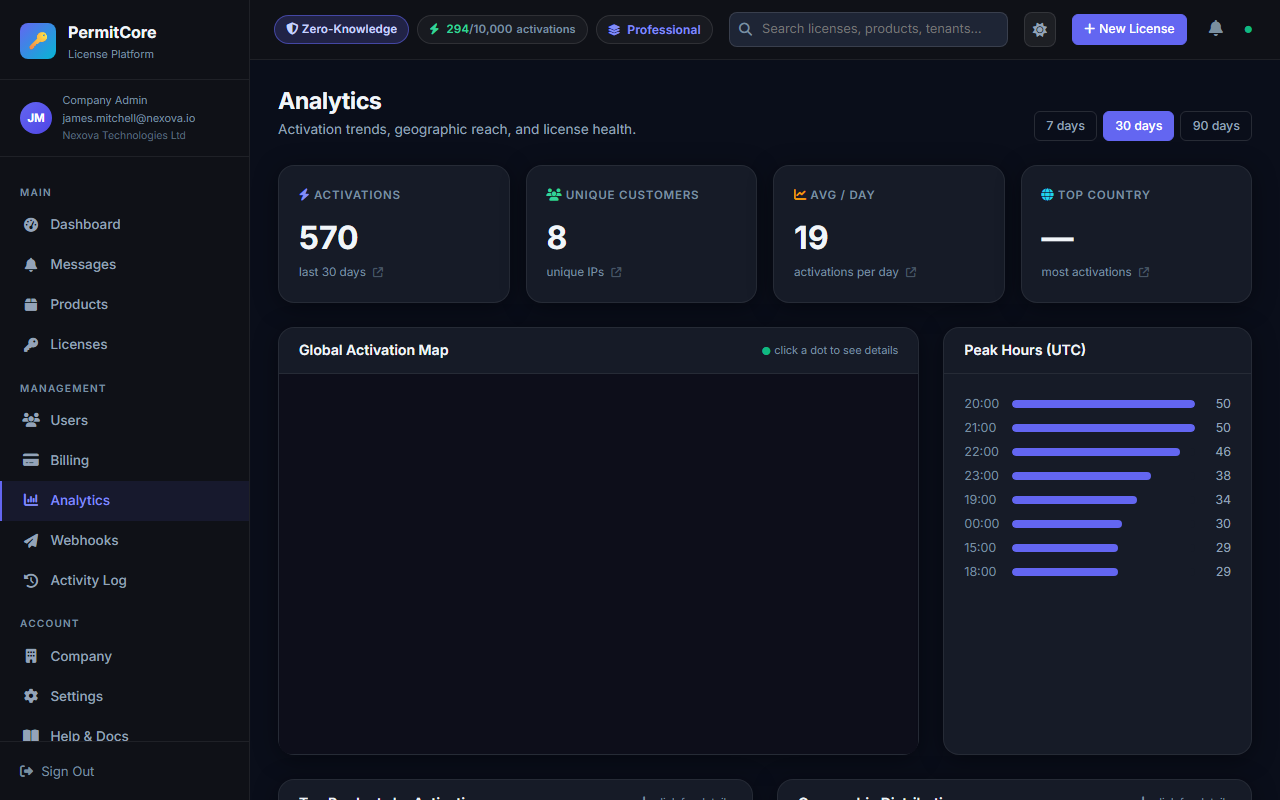
Analytics dashboard showing activation trends, license distribution, and product breakdowns.
What analytics shows
- Activation trends — daily/weekly/monthly activation volume
- License distribution — breakdown by product, status, and expiry
- Top products — which products have the most activations
- Pool consumption over time — how quickly you're using your activation pool
Time range
Switch between Today, Last 7 days, and Last 30 days to see different views of your data.
Activity Log
The Activity Log records every significant action in your account. It is append-only — entries cannot be edited or deleted. This provides a full audit trail for compliance and security purposes.
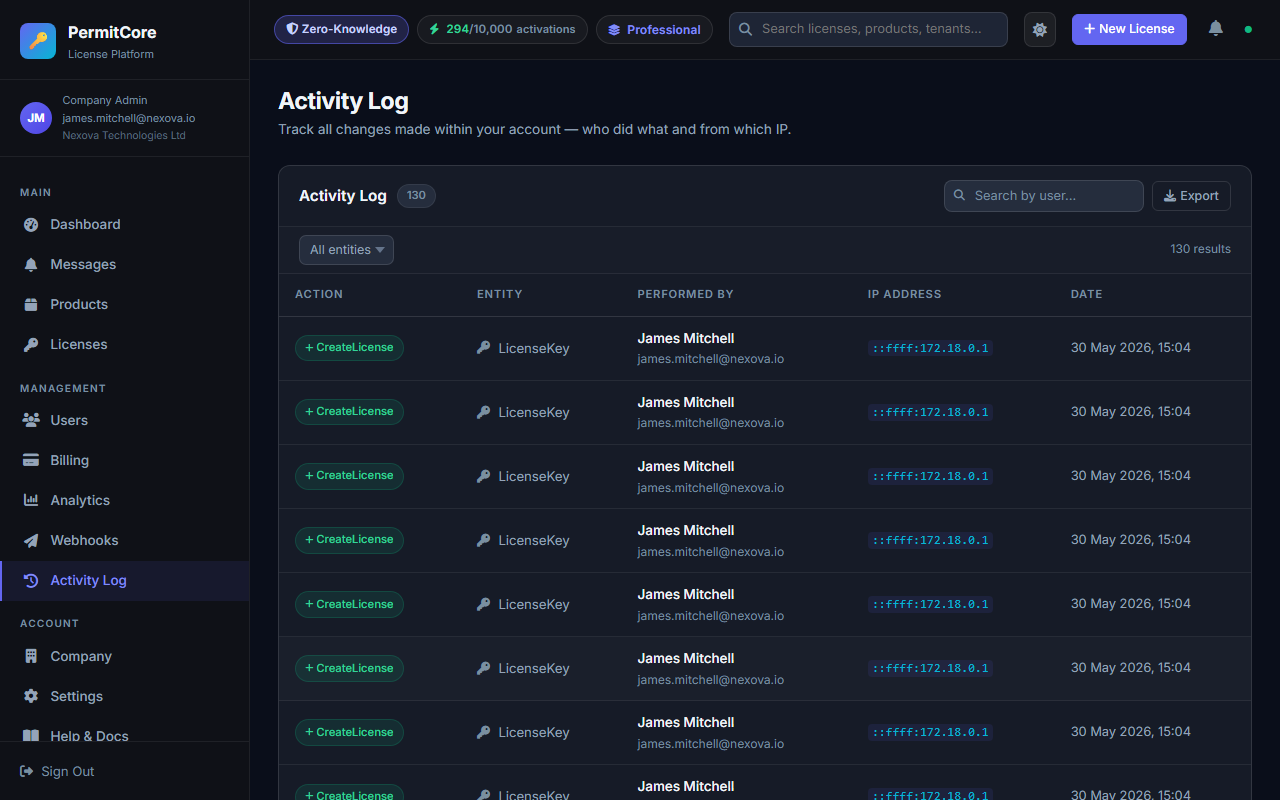
The Activity Log showing all account actions with timestamps, IP addresses, and user attribution.
What gets logged
- License created, updated, revoked
- User logins, logouts, failed login attempts
- MFA events (enabled, disabled, backup codes used)
- User created, updated, deactivated
- Product created, updated, deleted
- Company settings updated
- Password changes
- Account locked (after too many failed login attempts)
Reading a log entry
Each entry shows:
- Action — what happened (e.g. CreateLicense, Login, RevokeLicense)
- Entity — which record was affected (product name, user email, etc.)
- User — which team member performed the action
- IP Address — where the request came from
- Timestamp — when it happened (UTC)
- Details — a JSON diff showing before/after values for updates
Use cases
- Compliance — demonstrate to auditors that key operations are tracked
- Security investigation — if a key was unexpectedly revoked, find out who did it and from where
- Team accountability — see which team member made which change and when
Expiry Warning Dashboard Widget
The dashboard shows a Licenses Expiring Soon warning panel whenever any active license expires within 30 days. It gives you immediate visibility without needing to go to the Licenses page.
What the widget shows
- Badge: X in 7 days — count of licenses expiring within 7 days (red)
- Badge: X in 30 days — total expiring within 30 days (yellow)
- List of up to 8 licenses with product name, customer email, and "in Xd" countdown
- Each row links directly to the license detail page
- Panel is hidden entirely when nothing is expiring — zero clutter
API
The expiry data is included in the standard dashboard stats response:
GET /api/dashboard/stats

Response includes:
{
  "expiringIn7Days": 2,
  "expiringIn30Days": 5,
  "expiringLicenses": [
    { "id": "...", "productName": "Pro License", "expiresAt": "2026-06-15T00:00:00Z", "customerEmail": "[email protected]" },
    ...
  ]
}Weekly Email Digest
Every Monday at 09:00 UTC, PermitCore automatically sends a weekly summary email to all CompanyAdmin users. It gives a snapshot of your license health without logging in.
Email contents
| Section | Data shown |
|---|---|
| Active Licenses | Current total of active licenses |
| Activations (7d) | Number of activations in the past 7 days |
| Expiring in 7 days | Count — highlighted red if greater than 0 |
| Expiring in 30 days | Count — highlighted amber if greater than 5 |
| Expiry table | Product, customer, and expiry date for up to 5 upcoming expiries |
| CTA button | Direct link to your dashboard |
Anti-spam logic
If a tenant has zero active licenses and zero activations in the past 7 days, the digest is skipped entirely — new or inactive tenants don't receive empty emails.
Requirements
- SMTP configured — the deployment mail configuration (managed by the operator)
- At least one active CompanyAdmin user per tenant
License Expiry Notifications
PermitCore automatically sends email alerts before licenses expire — both to your CompanyAdmin users and (optionally) directly to end customers. No configuration is required beyond a working SMTP provider.
When notifications are sent
The job runs every day at 08:00 UTC. An email is triggered each time a license hits one of three expiry thresholds:
| Threshold | Recipient | Colour |
|---|---|---|
| 30 days before expiry | CompanyAdmin users | Grey |
| 7 days before expiry | CompanyAdmin users | Amber |
| 1 day before expiry | CompanyAdmin users | Red |
Each threshold fires once per license (within a ±1 day window to account for timing drift).
Admin notification email
CompanyAdmin users receive a summary table showing all licenses hitting a threshold that day: product name, partial key hash, expiry date with day countdown, and activation count. Multiple licenses in the same threshold window are grouped into a single email per tenant.
End-customer notifications
If a license has a Customer Email set, the same thresholds also trigger a shorter notification sent directly to the customer. The email is branded with your tenant name (not PermitCore) so it appears to come from you:
# Activation with customer email — enables customer-facing expiry notifications
POST /api/v1/activate
{
  "licenseKey": "PERMIT-XXXX-XXXX-XXXX-XXXX",
  "deviceId": "machine-id",
  "userEmail": "[email protected]"
}

# Or set CustomerEmail directly on the license in the admin panel
Implementation
The job is a Hangfire recurring job registered in Program.cs.
It requires Hangfire + Valkey (the default Docker setup) and a configured mail provider.
# Cron schedule — 08:00 UTC daily
"0 8 * * *"

# Thresholds (days before expiry)
30, 7, 1

# Implementation
LicenseExpiryNotificationJob (PermitCore.Infrastructure.Services)ExpiresAt set
trigger expiry emails. Licenses without an expiry date are ignored.
Notification Preferences
Each admin user can individually opt in or out of the two types of automated emails. This lets users control inbox noise for users who don't need both types of alerts.
Available toggles
| Setting | Default | Controls |
|---|---|---|
| Weekly digest emails | On | The Monday 09:00 UTC dashboard summary email |
| Expiry notification emails | On | The daily 30/7/1-day expiry alert emails |
Where to manage
Go to Settings → Notifications tab. Changes are saved per user account — they don't affect other admins in the same tenant.
API
# Get current notification preferences
GET /api/users/me/notifications
Authorization: Bearer {token}

# Response
{
  "digestEmailEnabled": true,
  "expiryEmailEnabled": true
}

# Update preferences
PATCH /api/users/me/notifications
Authorization: Bearer {token}
Content-Type: application/json

{
  "digestEmailEnabled": false,
  "expiryEmailEnabled": true
}