Products & licenses
Create products and license keys, apply templates, and manage installations.
Dashboard
The Dashboard is your home screen after logging in. It gives you a real-time overview of your license management activity.
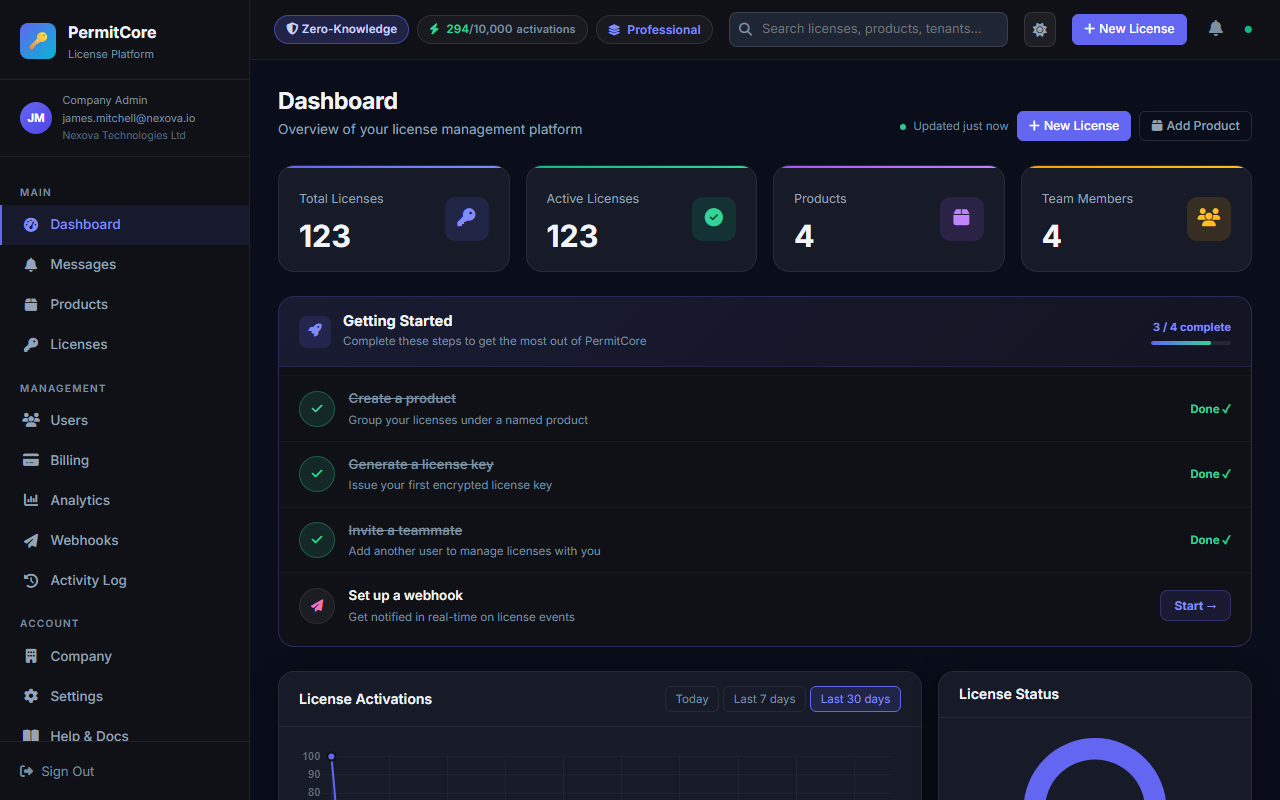
The Dashboard showing stats, Getting Started checklist, and activation charts.
Overview cards
The four cards at the top give you instant metrics:
| Card | What it shows |
|---|---|
| Total Licenses | All license keys ever created (including revoked ones) across all products |
| Active Licenses | Keys that are currently valid, not revoked, and not expired |
| Products | Number of products in your account |
| Team Members | Users who have access to your admin panel |
Topbar status bar
At the very top of every page you can see:
- Zero-Knowledge badge — a reminder that your keys are always encrypted
- Activation pool counter — shows
currentActivations / poolLimit. Changes colour: green (safe), yellow (over 80% used), red (limit reached) - Plan badge — your current plan (Free / Starter / Professional / Enterprise) with days left on subscription
Getting Started checklist
When you first sign up, a floating "Getting Started" widget appears in the bottom-right corner. It tracks four milestones: create a product, generate a license, invite a teammate, and set up a webhook. The widget disappears automatically once all are done — or you can manually dismiss it.
License Activations chart
Shows how many times licenses were activated over time. Switch between Today, Last 7 days, and Last 30 days. A flat line is normal for new accounts — activations only appear after customers start using their keys.
License Status chart
A donut chart showing the proportion of Active, Expired, and Revoked licenses at a glance.
Recent Activity
A log of the last actions taken in your account — license creation, user logins, revocations, etc. Click "View all" to go to the full Activity Log.
Products
A product is a container for license keys. Think of it as the software title you're licensing — for example "Acme Video Editor", "Acme Plugin Pack", or "Acme Enterprise Suite". You can have as many products as you need.
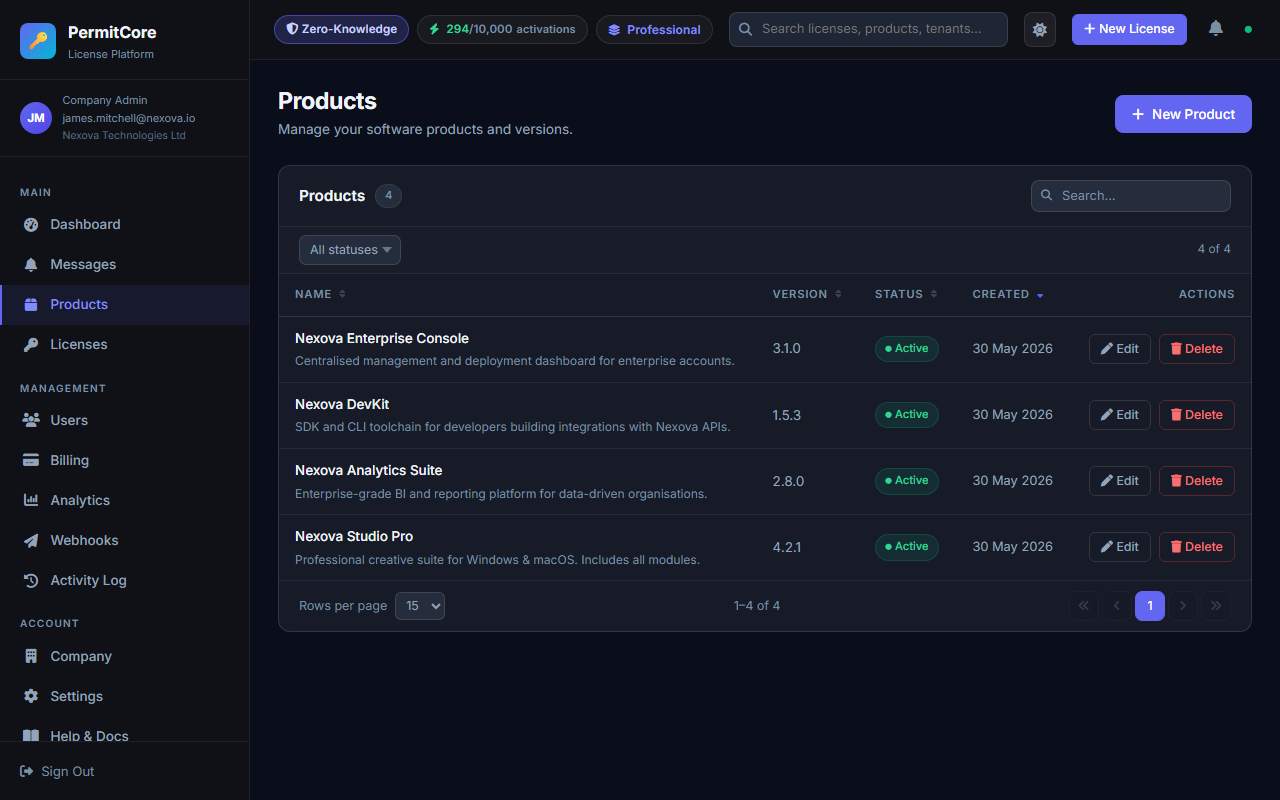
The Products page showing all products with license counts and actions. Each row also shows the product's GUID with a copy button — see the callout below for why you'll need it.
productId — but by default, any
active key belonging to your tenant validates successfully regardless of which of your
products it was issued for. If you sell more than one product, either check the response's
productId yourself, or pass the optional expectedProductId parameter
(copy it from here or from a license's own detail page) and let the server reject a mismatch
for you. See the API reference for details.
Creating a product
Go to Products → New Product and fill in:
| Field | Description | Example |
|---|---|---|
| Name | The product display name — returned in validation API responses | Acme Video Editor Pro |
| Description | Internal notes — customers don't see this | Windows + macOS bundle, v3 |
| Version | Optional version identifier for your own tracking | 3.2.1 |
Editing a product
Click the Edit (pencil) icon on any product. You can change the name, description, version, and toggle the product active/inactive.
isValid: false until you reactivate.
Use this only if you intend to stop the product entirely.
Deleting a product
A product can only be deleted if it has no active licenses. Revoke all active licenses first, then delete. This prevents accidentally deleting a product that paying customers are still using.
Licenses
License keys are the core of PermitCore. Each key is a unique string in the format PERMIT-XXXX-XXXX-XXXX-XXXX that your customer enters in your software to activate it.
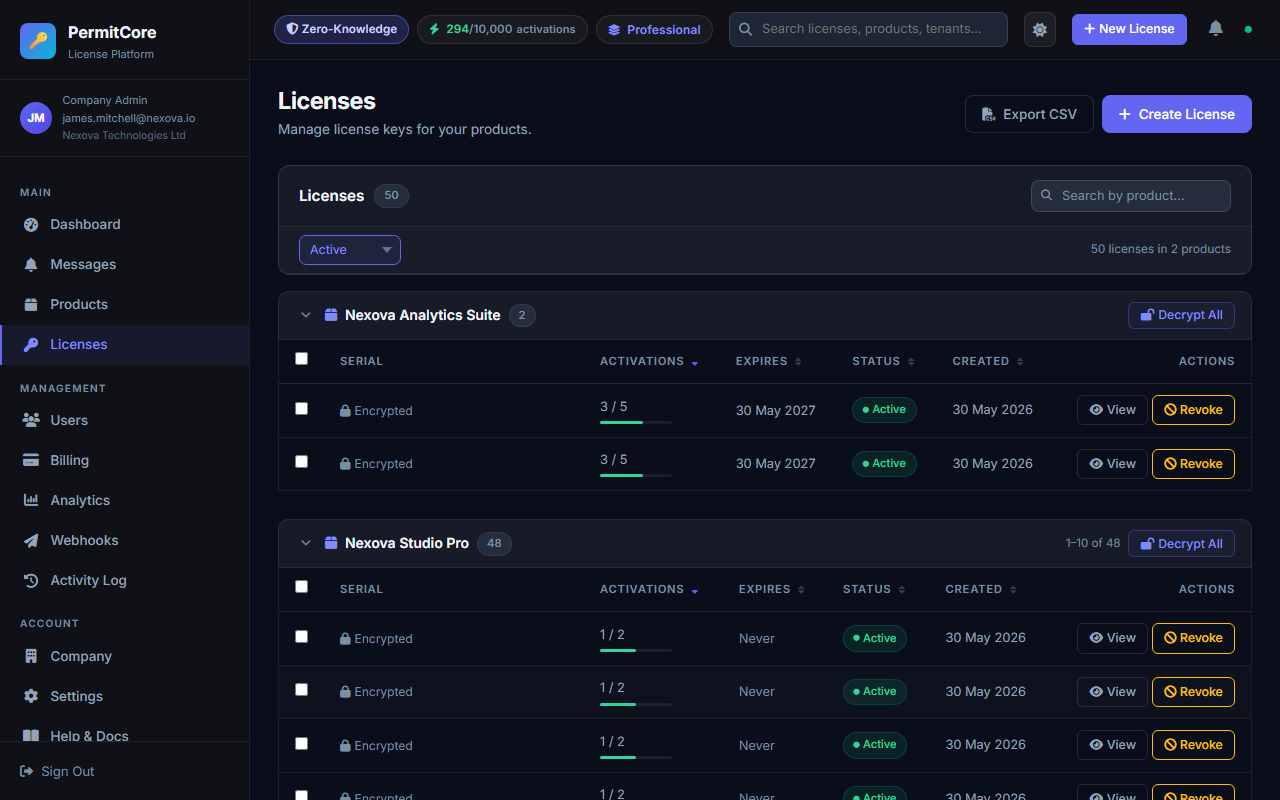
The Licenses page showing all keys grouped by product, with activation counters, status, and actions.
Understanding the licenses list
| Column | What it means |
|---|---|
| Serial | Shows "Encrypted" until you decrypt with your passphrase. Click View to reveal the plaintext key. |
| Activations | currentActivations / maxActivations — e.g. 2 / 3 means 2 of 3 allowed activations used |
| Expires | "Never" for perpetual licenses, or the exact expiry date/time |
| Status | Active (green), Revoked (red), or Expired (grey) |
| Created | When the key was generated |
The license key format
Every key starts with PERMIT- followed by four groups of 4 characters. The charset avoids look-alike characters (no 0/O, no 1/I/l) to prevent customer confusion.
Filtering and searching
Use the Active / Revoked / All filter dropdown and the Search by product box to narrow down large lists. Licenses are grouped by product for easier navigation.
Creating & Managing Licenses
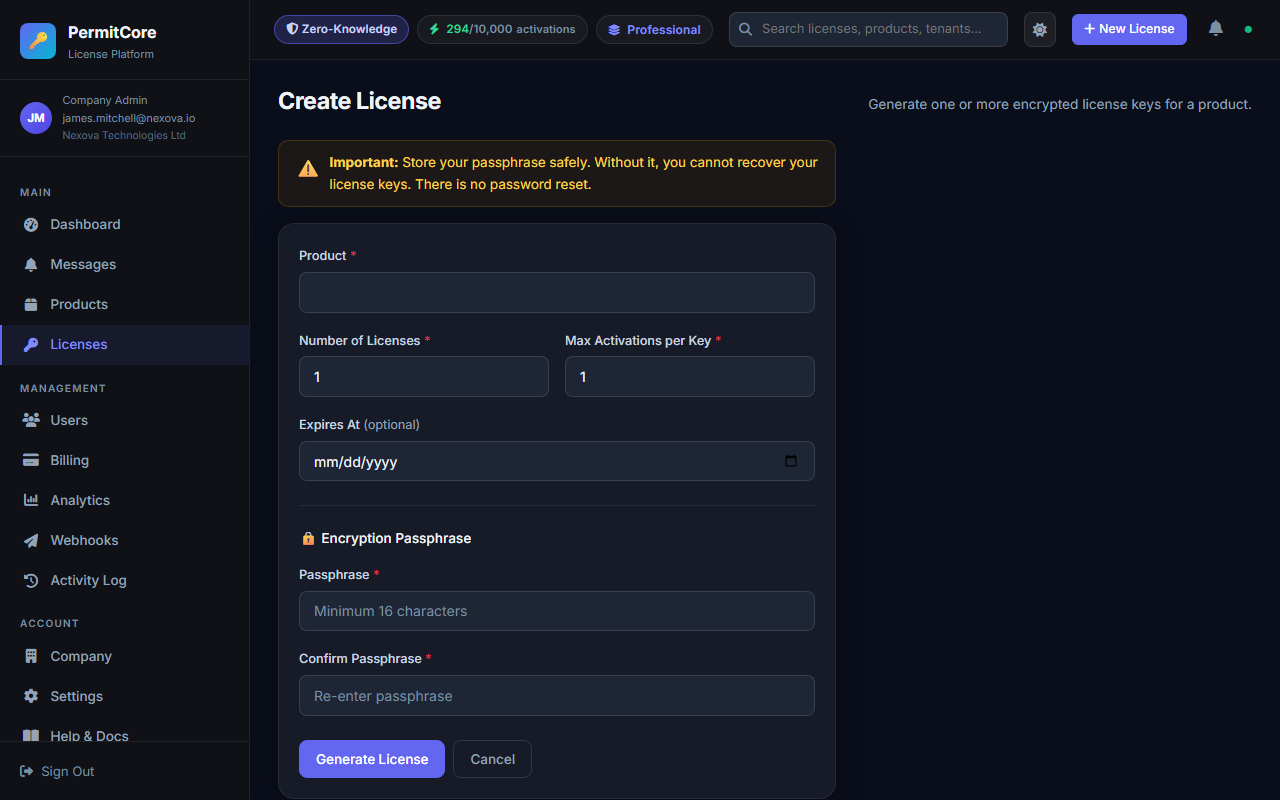
The Create License form — fill in product, count, max activations, optional expiry, and your passphrase.
Creating licenses
Go to Licenses → Create License (or click + New License in the topbar). Fill in the form:
| Field | Description |
|---|---|
| Product | Which product this license is for |
| Number of Licenses | How many keys to generate in one batch (1–100). Useful for bulk sales or resellers. |
| Max Activations per Key | How many devices/installs one key can be used on. E.g. 1 = single machine, 5 = family licence. |
| Expires At | Optional expiry date. Leave blank for perpetual (never expires) licenses. |
| Passphrase | Your encryption passphrase (minimum 16 characters). Must be the same passphrase you always use for this product — all keys under a product should use the same passphrase. |
Viewing and copying keys
License keys are stored encrypted. To reveal a key, find it in the Licenses list and click View. You'll be prompted for your passphrase. After entering it, the plaintext key is decrypted in your browser and displayed so you can copy it and send it to your customer.
Editing a license
You can update a license's Max Activations and Expiry Date after creation. This is useful if a customer buys additional seats or needs a time extension. You cannot lower Max Activations below the current activation count (that would strand existing users).
Revoking a license
To revoke a license (e.g. customer requested a refund, or the key was shared/leaked), click Revoke.
Revoked licenses return isValid: false immediately via the API.
Revocation is permanent — you cannot un-revoke a key. Issue a new key if needed.
Exporting licenses to CSV
Click Export CSV on the Licenses page to download all license data. The exported file contains encrypted keys. To export plaintext keys, use "Decrypt All" first, then export — the CSV will include the decrypted serial numbers.
Load License from Template
License templates let you define reusable presets — max activations, expiry duration, trial settings, and version constraints — and apply them instantly when creating new licenses.
How to use
- Go to Templates in the sidebar and create a template
- When creating a new license (Licenses → Create License), a green "Load from Template" dropdown appears above the form
- Select a template — the form auto-fills Max Activations, Expiry, Trial, and Version fields
- Adjust any fields as needed, enter your passphrase, and generate the key
What gets auto-filled
| Template field | Maps to |
|---|---|
MaxActivations | Max Activations per Key |
ExpiresAfterDays | Expires At (today + N days) |
IsTrial + TrialDays | Trial License toggle + days |
MinVersion / MaxVersion | Version constraints |
Extend Expiry (Bulk Action)
Select one or more licenses on the Licenses page and click Extend Expiry in the bulk action toolbar to quickly push expiry dates forward.
How it works
- Check any licenses using the row checkboxes (or the group header checkbox to select all in a product)
- Click Extend Expiry in the selection toolbar
- Choose a preset (+30 / +60 / +90 / +180 / +365 days from today) or enter a custom date
- Confirm — all selected licenses receive the same new
ExpiresAt
API
PATCH /api/licenses/bulk
Authorization: Bearer <token>
Content-Type: application/json

{
  "ids": ["uuid1", "uuid2"],
  "expiresAt": "2027-01-01T00:00:00Z",
  "clearExpiry": false
}Search Licenses by Activated User Email
Find all licenses that were activated by a specific end-user using the
"Activated by user email" field in the Licenses page advanced filters.
This uses the userEmail field captured during activation (named-user licensing).
How to use in the admin panel
- Go to Licenses
- Click the Filters button to expand advanced filters
- Enter an email in the "Activated by user email" field
- Click the magnifying glass — the list reloads showing only matching licenses
API
GET /api/[email protected]
Authorization: Bearer <token>

# Returns only licenses that have at least one activation
# with a matching UserEmail (case-insensitive partial match)userEmail field
in POST /api/v1/activate. See the Named User Licensing section.